

This is a working title but for now it explains pretty well what I am trying to do.
I am a keyboard junkie. I always have my right hand on my mouse and my left hand on my keyboard, usually ready for a CTRL/SHIFT/ALT + [KEY] combo to quickly knock out a task. I plan to share some quick tips that may help you be more productive when using the computer.
File Explorer or Windows Explorer, how ever you know it or what ever you call it, is the cornerstone for browsing file on a Windows computer. In the IT field, we also call it WINDOWS EXPLODER because it often crashes and can hold up the rest of your computer. If the explorer.exe process is not working right then you don’t get to see any icons or browse and the start menu and task bar require it as well. Working in IT, I always need to have people reference a file or folder. For some reason, no one likes to use keyboard shortcuts. Here is a list of keyboard shortcuts that I use daily. This ended up being more than 10 but there are so many that are useful and some were different combinations WIN + LEFT/RIGHT/UP/DOWN.
INFORMATIONAL
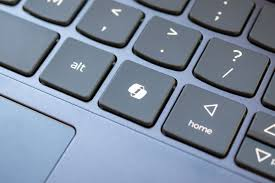
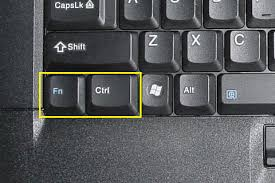
On the bottom left and right of almost every keyboard there are the SHIFT, CTRL (Control), WIN (Windows or Icon), ALT. As of 2025, computer manufacturers started replacing the right control key with the Copilot key (seen in second screenshot). You probably also have a FN (Function) key. On the keyboard I am using now, it is on the bottom right of the space bar. I am using a Logitech K850 for this computer.
Lenovo also swapped the CTRL and FN key putting the FN key on the far bottom left which is quite ANNOYING if you are used to using your pinky for the bottom right CTRL key on almost EVERY OTHER KEYBOARD. #ThanksLenovo

WIN + E ~ to launch Explorer – this will take you to Window Home, which used to be called This PC or My PC. You will see your quick access, recent files, favorites, shared, and local/mapped drives.
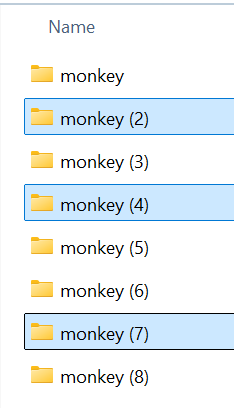
CTRL + CLICK ~ to select items that are not in sequence (you can also use this to unselect items that you already selected)
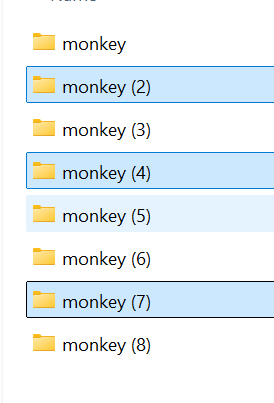
SHIFT + CLICK ~ to select the first item, shift click the last item IN SEQUENCE, and everything between.
ENTER ~ when an item is selected this will launch or open the item
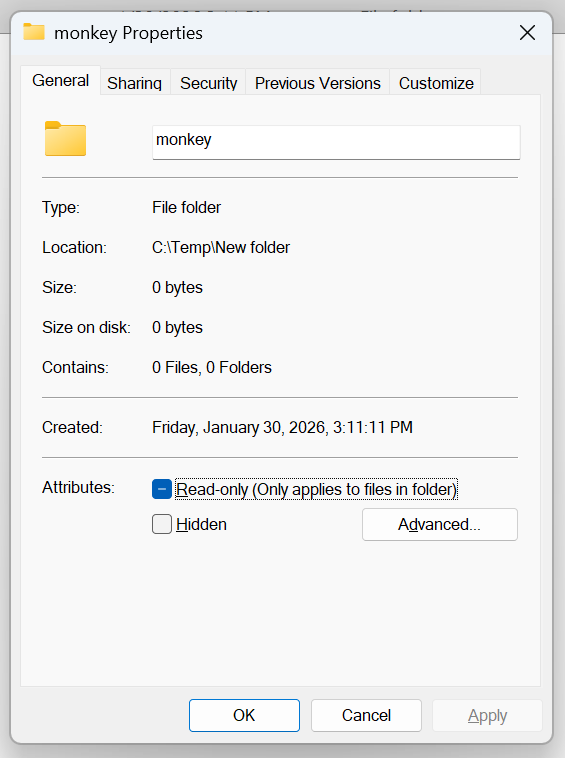
ALT + ENTER ~ when an item is selected, this will bring up the file properties
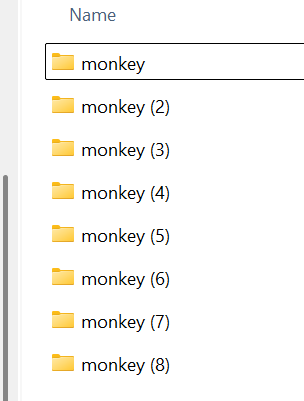
F2 ~ Rename File/Folder – when an item or items are selected, this will highlight the filename so you can type a new name. No need to hit DEL or BACKSPACE, just start typing your name file/folder name and hit enter (One of my favorites) (be careful when selecting multiple files/folders as this will rename them to a sequence numbering with (2+n) parenthesis.
F6, CTRL + L, or ALT + D ~ to place the curser in the address bar (I use the F6 key, same as Chrome/Edge/Firefox) (F6 works but you may have to enter it multiples times to sequence between other items)
CTRL + N ~ opens a new Explorer Window
CTRL + SHIFT + N ~ creates a new folder and is ready for you to type a name or hit enter to create the name as ‘New folder’ or ‘New folder (2)’ if there is already a same name (why doesn’t it use ‘New folder (1)’ for a new name?)

WIN + UP (arrow) ~ maximize the window (this works with any window)
WIN + DOWN (arrow) ~ this minimizes the window to the task bar (also works on any window)
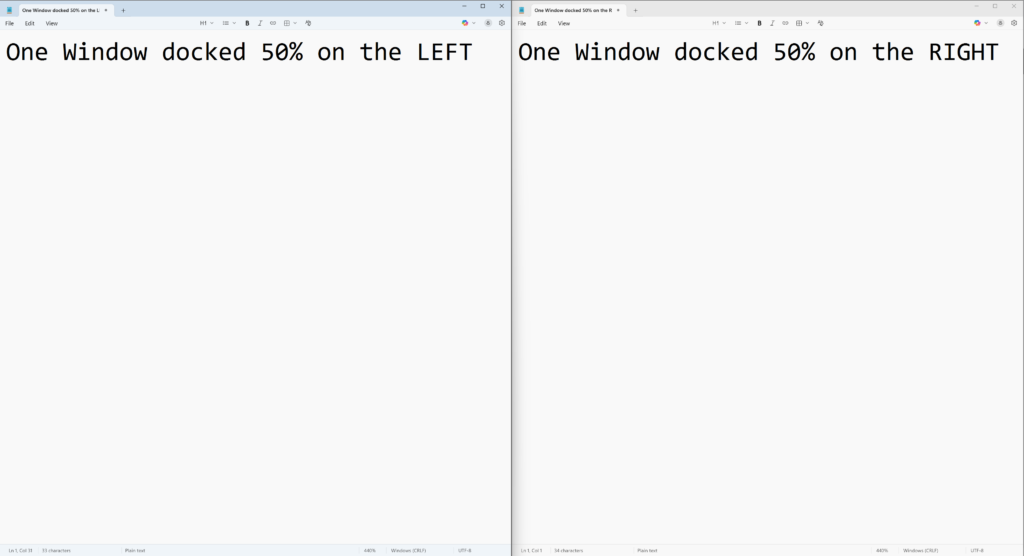
WIN + LEFT or RIGHT (arrow) ~ this will dock the window to 50% left or 50% right. The next screen will allow you to automatically dock another open window to the right/left (the opposite side) (also works on any window)
WIN + LEFT or RIGHT (arrow) (in sequence) ~ this will move the application window in rotation to your other monitors (try it!)
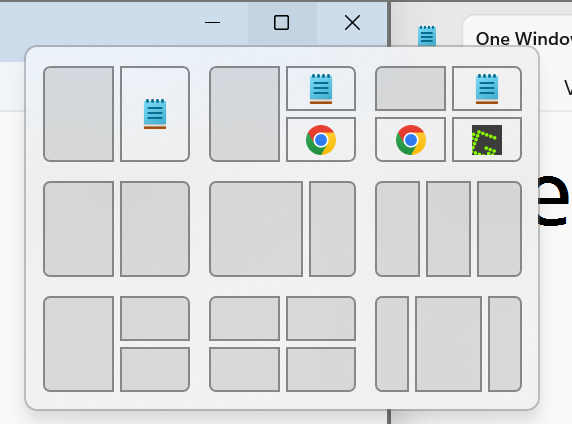
BONUS – NOT A KEYBOARD SHORTCUT – If you hover on the top right of any window you will get other docking options.
ALT + TAB ~ this will bring up a screenshot of all your open application windows so you can easily open one that is not in focus. Hold alt and keep hitting tab to scroll through. Holding ALT, hit SHIFVT + TAB to scroll in reverse direction (I ALWAYS use this)
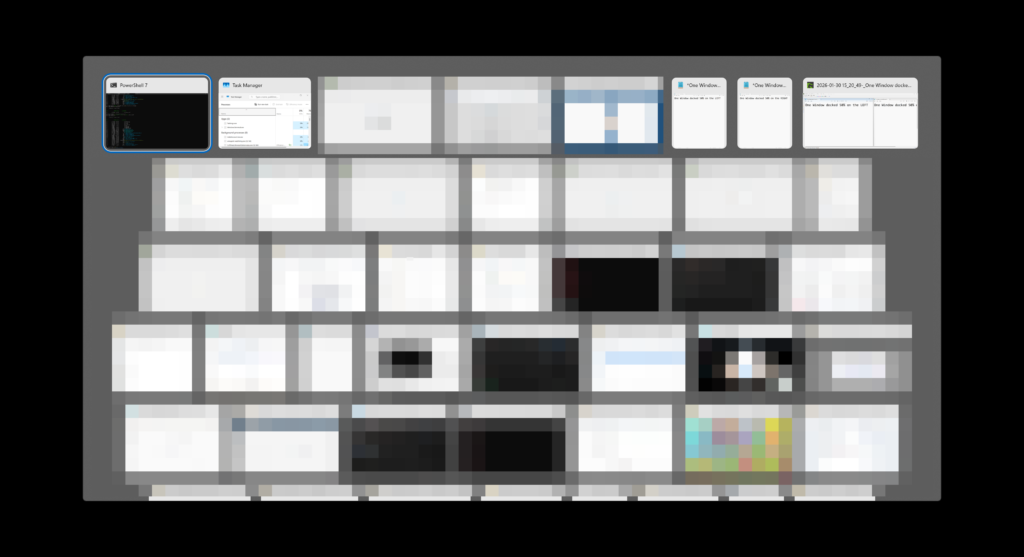
WIN + TAB ~ similar to ALT + TAB but this allow you to create a new desktop view and you can scroll through with the LEFT/RIGHT arrows. (I rarely use this)
CTRL + E ~ puts curser in search bar on top right. I would suggest you use this carefully as it will take a while to search items because it does contextual search and it searches the current folder and lower in hierarchy. I highly suggest an app called ‘Search Everything‘ that does instant file/folder name results.
Let me know what program I can cover next and I am sure I have keyboard shortcuts for it.
This is also available via LinkedIn.