

This is a working title but for now it explains pretty well what I am trying to do.
I am a keyboard junkie. I always have my right hand on my mouse and my left hand on my keyboard, usually ready for a CTRL + [KEY] combo to quickly knock out a task. I plan to share some quick tips that may help you be more productive when using the computer.
Does the top of your Chrome/Edge/Firefox [insert your favorite/default browser name] – look like this? If so then we are very much alike. I love using tabs. I also have many Chrome windows with just as many tabs in each. Call me crazy…
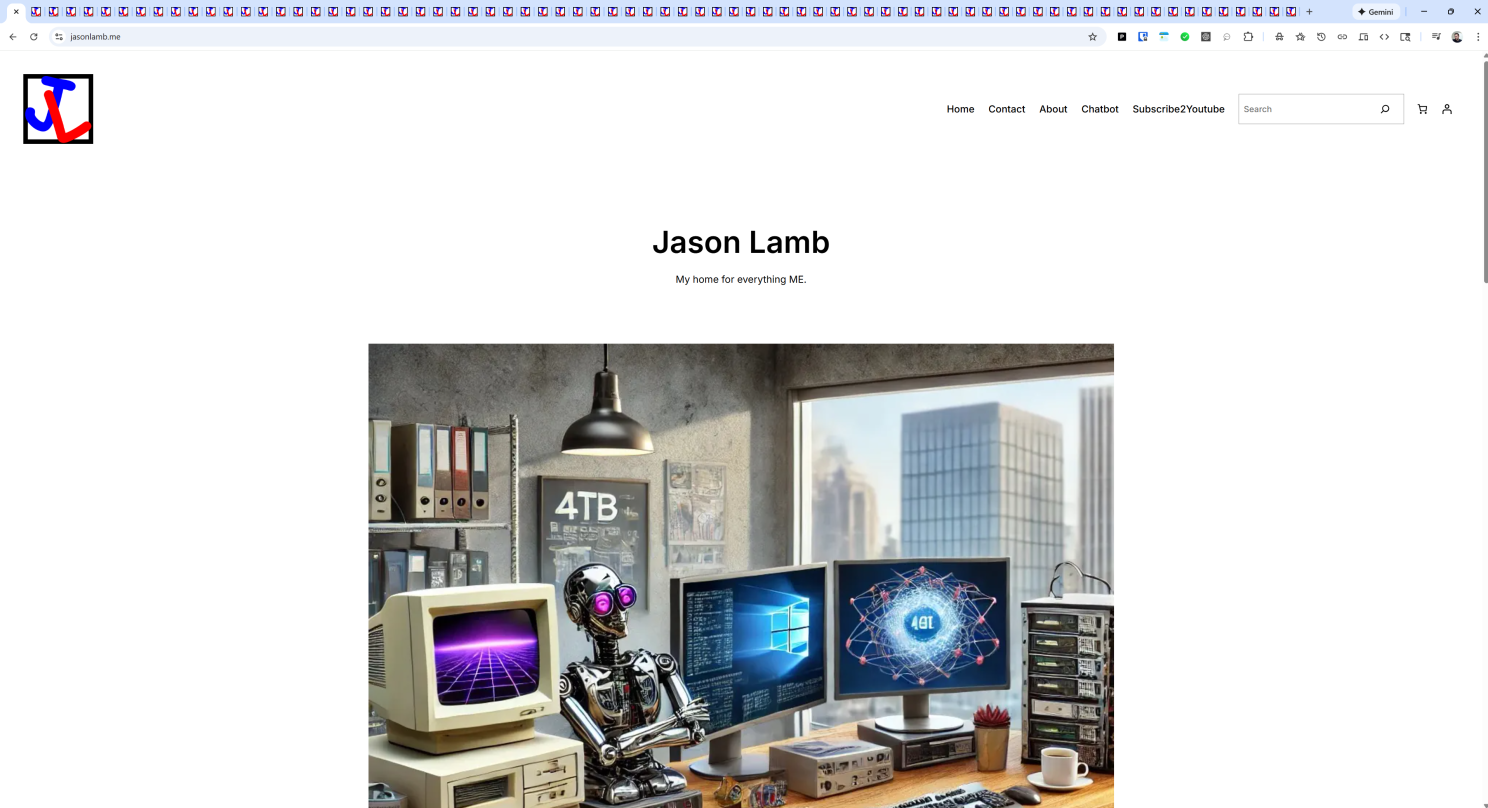
If your browser window looks like mine, then you know that managing Chrome/Edge/Firefox tabs and windows can be a pain. I don’t like to loose my location on a tab so almost every time I click a hyperlink I use CTRL + LEFT CLICK to open that link in a new tab. If I an typing in the omnibox (address bar) then I will almost always use ALT + ENTER to open a new tab for a new website.
Chrome/Edge
These are keyboard shortcuts I use very regularly to move about and control Chrome or Edge.
- CTRL + CLICK (link) ~ open that link in a new tab
- CTRL + 1 through 8 ~ shortcut to the first eight tabs in that window
- CTRL + 9 ~ shortcut to the last tab, even if there are more than 9
- F6 ~ highlight and place cursor in address bar
- typing > ALT + ENTER ~ after typing a search or domain, holding ALT with ENTER will open that search result or page in a new tab
- CTRL +SHIFT + B ~ hide/unhide bookmarks
- CTRL + SHIFT + O ~ open bookmarks window
- CTRL + J ~ open downloads window
- CTRL + H ~ open history window
- CTRL + SHIFT + N ~ incognito window
Also available on LinkedIn – https://jasr.me/linews